Tell two keyboards apart on Windows
Use the Interceptor Keyboard & Mouse input viewer to see which keyboard sent a key. The viewer passes the keys through normally while you observe them.
Install and try it
- Connect two keyboards to your Windows 10 (1709 or newer) or Windows 11 x64 PC. If the combined Interceptor edition is installed, follow its removal steps first.
- Run
InterceptorSetup.exe, accept the administrator prompt and choose Install / reinstall. Restart Windows if requested. - Open
InterceptorExampleUI.exe. In Keyboard, select All keyboards and click Observe if observation is stopped. - Tap the same letter on each keyboard in turn. Read last ID below the diagram after each press. Two different IDs show that the viewer can tell the keyboards apart. You can then select a single keyboard in the list. Click Stop when finished.
See where the viewer shows the device ID
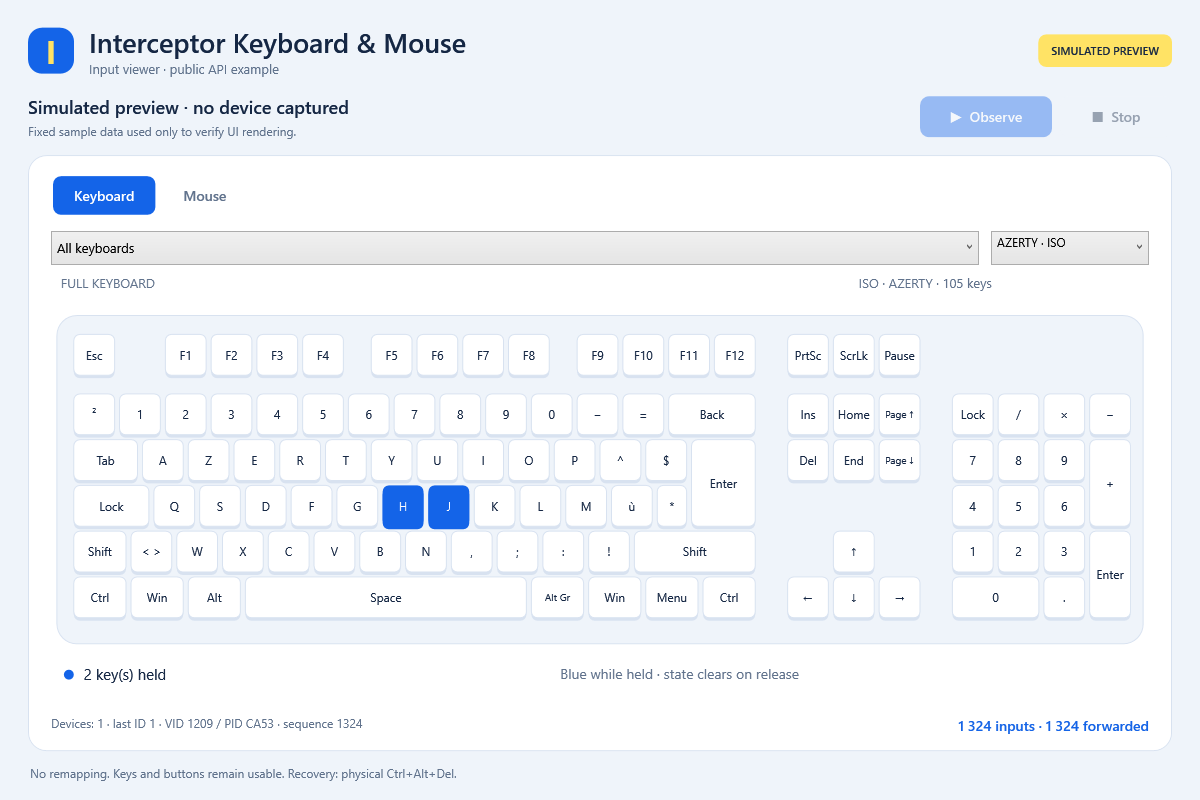
If the second keyboard does not appear, check that it works normally in Windows and see the supported device paths. Each demo lasts one hour per Windows boot, starting with the first capture.
Test results
In a Windows 11 virtual machine, two virtual USB keyboards sent the same key. The demo SDK reported each press and release with the correct keyboard ID. Use the steps above to confirm support for your own keyboards.
USB keyboard capture report · Viewer self-test and preview report
Check the driver from Python
Use 64-bit Python 3.10 or later on Windows. Put the Python wheel and check script in the same folder, then open PowerShell there.
python -m pip install .\interceptor_keyboard_mouse-1.0.0-py3-none-win_amd64.whl
python python-interceptor-edition-status.py interceptor-keyboard-mouse
With demo 1.0.5.4, installed: true means the driver for this edition answered. On a fresh install, trial_state: 0 means its demo timer is still unstarted. Windows error 2 means the script could not find this edition’s driver.
Build the first SDK check
On Windows, install Visual Studio 2022 with the C++ desktop tools, CMake 3.20+, and Python 3.10+. Install the demo above. Extract the ZIP and open PowerShell in the extracted folder.
python scripts/test_first_sdk.py interceptor-keyboard-mouse --runTo require the post-install result, run python scripts/test_first_sdk.py interceptor-keyboard-mouse --expect-installed.
Expected after installation Driver answered.